

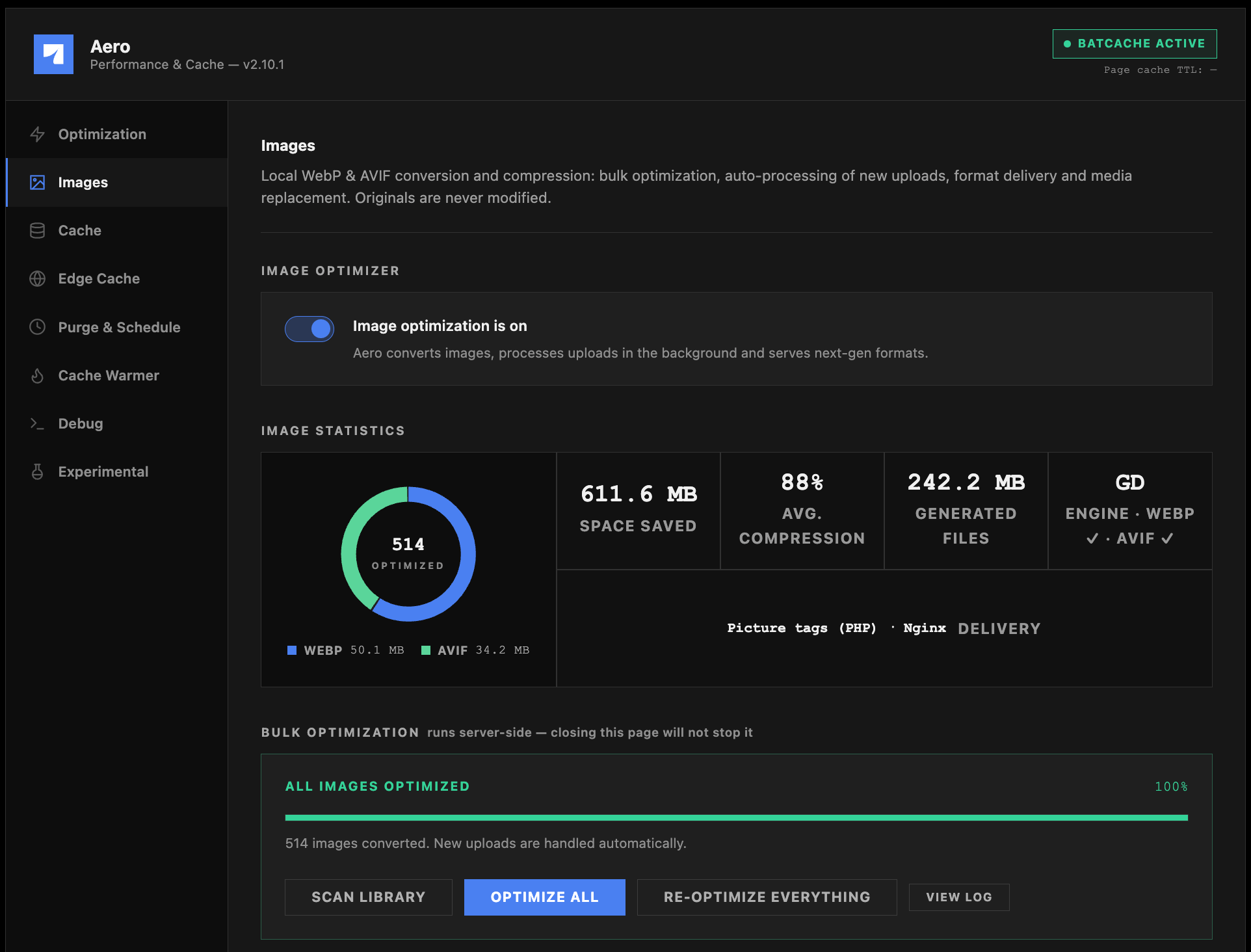
Master switch and conflicts
One toggle at the top of the screen controls everything: conversion, background processing, and delivery rewriting. Turning it off doesn’t delete anything already generated, files stay on disk, so switching back on later resumes exactly where you left off rather than starting over. Aero also actively checks for other image optimization plugins (around twenty common ones are recognized by name) and warns you in wp-admin if one is active alongside Aero’s own optimizer. Two plugins hooking the same upload pipeline and rewriting the same delivery layer will fight each other, and the symptoms usually look like “Aero is broken” rather than an obvious conflict. If you see this warning, pick one optimizer and deactivate the other rather than troubleshooting the symptoms.Formats & Quality
Convert to WebP: Safe, recommended
Convert to WebP: Safe, recommended
Generates a
.webp derivative for every JPG/PNG, and compresses originals already in WebP. Universally supported across every modern browser, this is the safe default format.Convert to AVIF: Safe, recommended where supported
Convert to AVIF: Safe, recommended where supported
Smaller than WebP at equivalent visual quality. AVIF is served first when a browser accepts it, WebP as the fallback. Requires AVIF encoding support in GD or Imagick; if your server can’t encode it, the checkbox is disabled with an explanation rather than silently failing.
Processing Rules
Auto-optimize new uploads: Safe, recommended
Auto-optimize new uploads: Safe, recommended
Every image added to the media library gets converted immediately after WordPress finishes generating its thumbnails. Without this, new uploads sit unconverted until the next bulk run.
Auto-remove larger conversions: Safe, recommended
Auto-remove larger conversions: Safe, recommended
If a converted file ends up bigger than the original, common with tiny PNGs and simple graphics, Aero deletes the conversion so the smaller original keeps serving. This is a pure safety net with no downside.
Strip EXIF metadata: Safe, recommended
Strip EXIF metadata: Safe, recommended
Removes camera metadata (GPS coordinates, device model, timestamps) from converted files. Smaller files and better privacy, since GPS EXIF data has genuinely leaked people’s home addresses from photos before.
Resize oversized originals: Situational
Resize oversized originals: Situational
Downscales huge camera uploads before conversion, and this resizes the original file itself, not just a derivative. Turn this on if your team routinely uploads unedited camera or phone photos (often 4000px+ wide) that never need to display anywhere near that size. Leave it off if you deliberately keep full-resolution originals for other uses like print.
Flush Aero caches after optimization: Safe, recommended
Flush Aero caches after optimization: Safe, recommended
Runs the sequential purge (object cache, then Batcache, then Edge) once a bulk optimization run finishes, so pages start serving the new formats immediately instead of showing cached markup that still points at the old files.
Format exceptions and skipping
Delivery
How converted files actually reach the browser. Aero detects your server automatically and picks a working default, but you can override it.Nginx ignores
.htaccess files entirely, so Aero switches to picture-tag delivery automatically on Nginx and disables the .htaccess options in the interface with an explanation. If you control your own Nginx config and want content-negotiated rewrites instead of picture tags, an advanced section on this screen provides a ready-made snippet (a map block plus a location block) to paste in yourself.Rewrite backgrounds in stylesheet files: Safe, recommended in picture mode
Rewrite backgrounds in stylesheet files: Safe, recommended in picture mode
Page builders (Elementor, Divi, and others) write their section CSS to real files on disk that never pass through normal page output, which is why background images inside them historically got missed by rewriters. Aero processes each local stylesheet once into a cached copy with backgrounds wrapped in
image-set(), keyed to the source file’s modification time so a rebuild by your page builder produces a fresh copy automatically.Handle lazy-loaded background attributes: Safe, recommended in picture mode
Handle lazy-loaded background attributes: Safe, recommended in picture mode
Lazy-loading libraries keep background URLs in
data-* attributes and apply them with their own JavaScript, out of reach of any server-side rewrite. Aero tags those elements with the derivatives that exist on disk, and a small injected script swaps in the right format once it knows what the browser can decode.Media Replacement
Swaps the file behind an existing attachment without changing its URL or attachment ID, useful for correcting a wrong image without breaking every place it’s already linked or embedded. Available as a panel on the attachment edit screen.Image URL Replace
A separate, heavier tool: point every reference to one image URL at a different image URL, across post content, custom fields, term meta, and options, including Elementor’s JSON layout data with its escaped-slash format. Serialized values are unpacked and rebuilt rather than string-replaced, which is what keeps them from corrupting when the new URL is a different length than the old one.Custom Folders
Point Aero at directories insidewp-content but outside the media library, theme assets, page-builder output folders, and optimize those too. Paths are validated server-side so the scanner can never wander outside wp-content or into cache and plugin directories, so this is safe to use even with a typed-in path.
Logs and Restore
The Logs section shows per-run optimization logs you can inspect or clear. Restore deletes every generated WebP/AVIF file and all optimization data in one click.Originals are never modified by conversion, only new derivative files are created alongside them. Restoring returns your site to its exact prior state, and uninstalling the plugin performs the same cleanup automatically, including removing any rewrite rules it added.